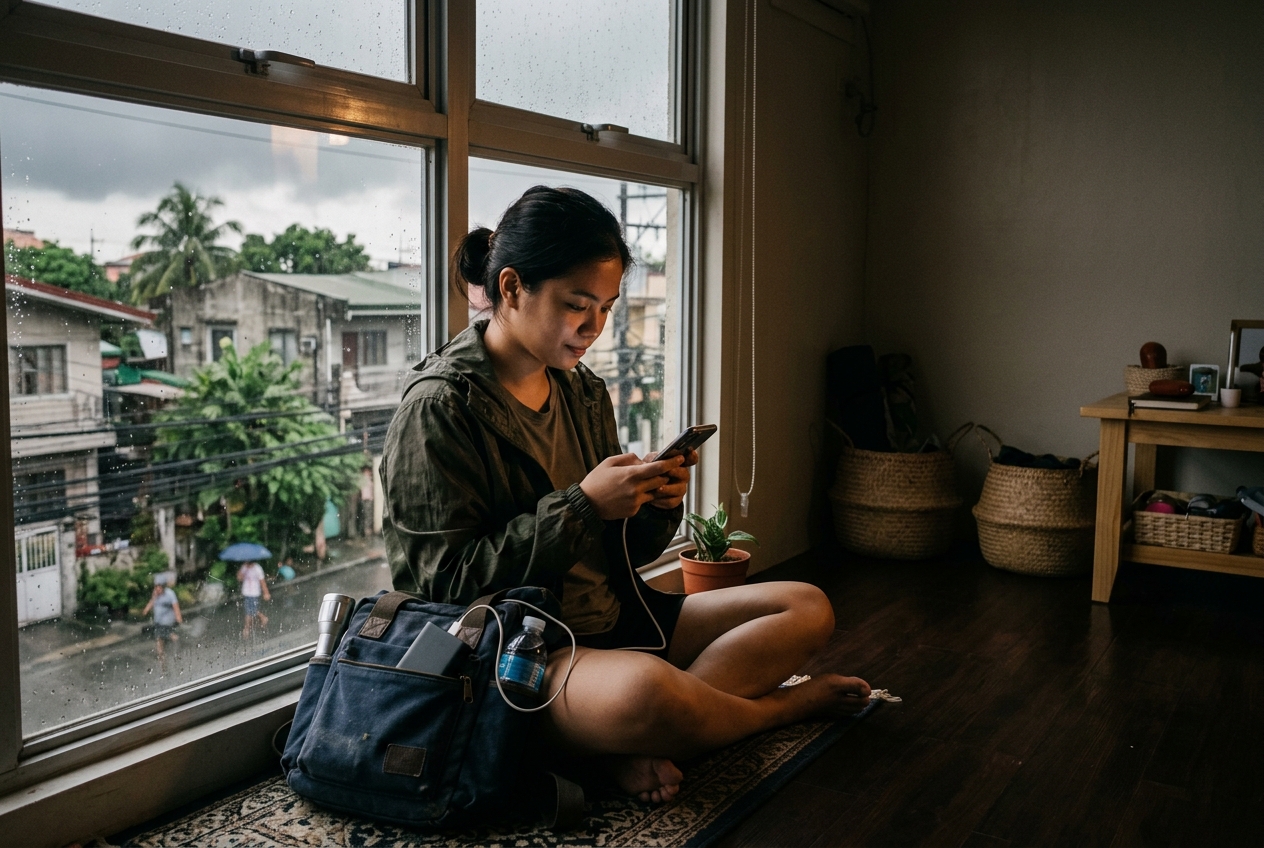
How to keep the Wi-Fi on through a brownout when you work from home
A practical guide to keeping your home internet alive during a brownout: sizing a small UPS for your modem and router, when to lean on a mobile hotspot, and the honest limit of what any of this can do.
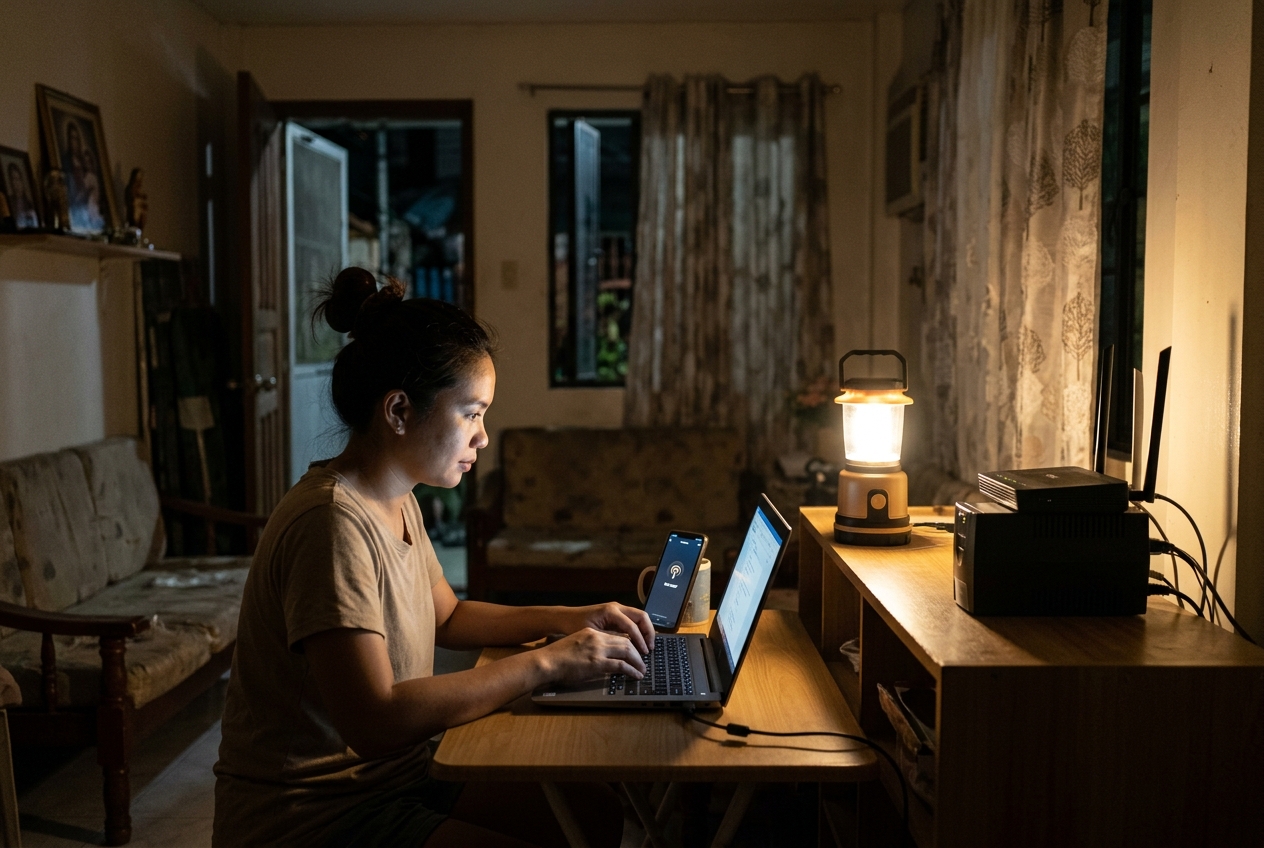
If you’re trying to figure out how to keep internet during a brownout in the Philippines, here’s the good news first. Your modem and router draw very little power compared to a fridge or an aircon.
You don’t need a whole-house power plan to stay online through a few hours of dark. You need a small, correctly sized backup for two or three small boxes, and a second path to the internet that doesn’t depend on your building’s electric meter at all.
This guide stays narrowly on that problem: keeping your connection alive, not keeping your household powered. If you want the broader 72-hour outage plan, that’s covered elsewhere on this site. Here, we’re solving one thing: staying reachable and able to work when the power drops mid-shift or mid-deadline.
Why this matters if you work from home
A brownout that happens at night is an inconvenience. A brownout that happens during a client call, a shift, or while you’re uploading a file is a different kind of problem.
For anyone paid by the hour, by the output, or by the client’s trust that you’ll be online when you said you would, losing connectivity costs real money, not just comfort.
The fix is smaller than most people expect. A modem and router sip power. Keeping them alive for a few hours is cheap and simple compared to running a freezer or an aircon on backup power.
The harder, more honest problem is what happens if the outage is bigger than your building: if the cell tower itself goes dark.
What you need
A small UPS (uninterruptible power supply) sized for your modem and router. Not a power station, not a generator.
Most home ONTs (the small box your fiber provider installs, often called a modem) draw somewhere around 10 to 15 watts. A typical Wi-Fi router draws about 5 to 10 watts. Together, that’s commonly 15 to 25 watts, far less than almost anything else in the house. These are typical figures, so check the label on your own devices to confirm.
A small UPS rated for this load (150 to 300 watt-hours, or sold by VA, volt-ampere, rating) can commonly keep a modem and router online for 3 to 8 hours, depending on the unit, its age, and how honestly it was rated. Treat any number on the box as optimistic and plan for less.
If you’d rather use a power bank instead of a dedicated UPS, the capacity math and the type of power bank that actually makes sense for Philippine brownouts is its own topic. I’d point you to our separate guide, [power banks for Philippine brownouts: what capacity and type actually make sense], rather than re-explain it here.
A prepaid mobile hotspot device, or just your phone set up for tethering. This is your second path to the internet, one that keeps working as long as the nearest cell tower has power, even if your building doesn’t.
A small prepaid data add-on from Globe, Smart, or DITO, bought before you need it. A data add-on, often ₱99 to ₱299 for a few gigabytes, is cheap insurance. Buy it before a storm, not during one, since networks get congested fast once everyone’s trying to load up at the same time.
Basic surge protection for your modem. A brownout isn’t just an absence of power. It’s often preceded or followed by flickers: power cutting in and out several times before it settles one way or the other.
Each flicker is a small shock to your modem’s power supply. A basic surge-protected power strip, the same kind sold for computers, is cheap insurance against a fried modem after a rough week of flickers.
The method: setting this up before you need it
- Check the wattage of your modem/ONT and router. Look at the small label on the underside or back of each device. It will list the power draw, often in watts, or in volts and amps that multiply together to give you watts.
- Add the two numbers together. This is your total load. For most households it lands somewhere between 15 and 30 watts.
- Match that load to a UPS or power bank with enough watt-hours for the hours you actually need. If you want 4 hours of backup at a 25-watt load, you need roughly 100 watt-hours of usable capacity, and a bit more than that because no battery delivers 100% of its rating in real use.
- Plug the modem and router into the UPS, not into a plain surge strip, and plug the UPS into a surge-protected outlet. This gives you both the brief ride-through during flickers and the longer backup during an actual outage.
- Set up mobile hotspot or tethering on your phone before you need it, not during the outage. Know your phone’s hotspot password, know how to turn it on quickly, and know which apps you’ll need to close to save battery while tethering.
- Buy a prepaid data add-on a few days before a typhoon is expected, based on PAGASA advisories. Don’t wait until the brownout has already started.
- Test the whole setup on a calm day. Unplug the modem and router from the wall, run them on the UPS alone, and confirm your hotspot switch works, before the day you actually need all of it at once.
Variations and conditions
If you’re in a condo with shared building power for the elevator and common areas but your own meter for the unit, your Wi-Fi backup plan is purely about your own modem and router. The building’s own generator, if it has one, doesn’t usually extend to your unit’s internet equipment.
If you’re renting a room and don’t control the router, a UPS may not be worth buying unless your landlord is on board. In that case, lean more heavily on a hotspot or tethering as your main backup, since it only depends on your own phone and sim.
If your household genuinely cannot afford downtime, client calls, livestreams, time-sensitive uploads, a UPS and hotspot combo is a reasonable baseline, but it still has a ceiling. For a harder floor on connectivity, independent of both your home power and your local cell tower, we’ve reviewed the Starlink Mini review: internet after towers lose power, which solves a different and bigger problem than this guide does.
If brownouts in your area are short and rare, a basic surge-protected strip plus a tethering plan on your phone may be all you need. Not every household needs a dedicated UPS.
Common mistakes
- Sizing the UPS for the whole house instead of just the modem and router. This is a power-station decision, not a Wi-Fi decision, and it’s covered elsewhere on this site, not here.
- Buying a data add-on only after the brownout has started. Loading networks get congested fast once a storm hits a region, and you may not get through at all.
- Skipping surge protection because “it hasn’t failed yet.” Repeated flickers wear down a modem’s power supply gradually. The failure often comes a week or two after the flickers, not during them.
- Assuming a mobile hotspot is a permanent fix. If the brownout is wide enough to take down the local cell tower too, your phone’s signal will fade once the tower’s own backup battery runs out.
- Forgetting to actually test the setup. A UPS that hasn’t been tested since you bought it may be holding a battery that’s already degraded.
How to practise safely
Run a planned test, not a surprise one. Pick a calm afternoon, unplug the modem and router from the wall, and watch how long the UPS or power bank actually keeps them online.
Write that number down. It’s more useful than anything printed on the box.
Separately, practise switching your phone to hotspot mode and reconnecting your laptop to it, so that on the day you need it, it’s muscle memory and not a scramble. The gear that matters most is usually the gear you’ve already rehearsed using under pressure, not the gear you assume will work.
The honest limit: towers lose power too
None of this helps if the cell tower serving your area loses power. Cell towers have their own backup batteries and sometimes generators, but those run out too, especially in a wide, prolonged outage after a major typhoon.
When the tower goes down, your hotspot and tethering plan go down with it, because there’s no signal to tether to.
In that case, your household is offline until the tower’s own backup runs out and is refueled or repaired, or until grid power returns to that tower’s area. No UPS, no prepaid data add-on, and no amount of planning changes that.
If you need a connection that doesn’t depend on a cell tower at all, that’s a different tool and a different budget, and it’s what we cover in our Starlink Mini review: internet after towers lose power.
The one thing to remember
A small UPS keeps your modem and router alive during a brownout; a prepaid hotspot keeps you online if the brownout is local to your building. Neither one survives a cell tower losing its own power, and knowing that limit in advance is what keeps you calm instead of scrambling when it happens.
Galing Gear shares general preparedness and first aid information based on sources such as the DOH, WHO and the Philippine Red Cross. It is not a diagnosis or prescription, and it does not replace a doctor, nurse, pharmacist or trained responder. We never give medicine doses. Follow the latest advice of the DOH, your local health office and your medicine’s label. In an emergency, call 911. Philippine Red Cross: 143. Mental health crisis (NCMH): 1553 (landline). When unsure, get checked.